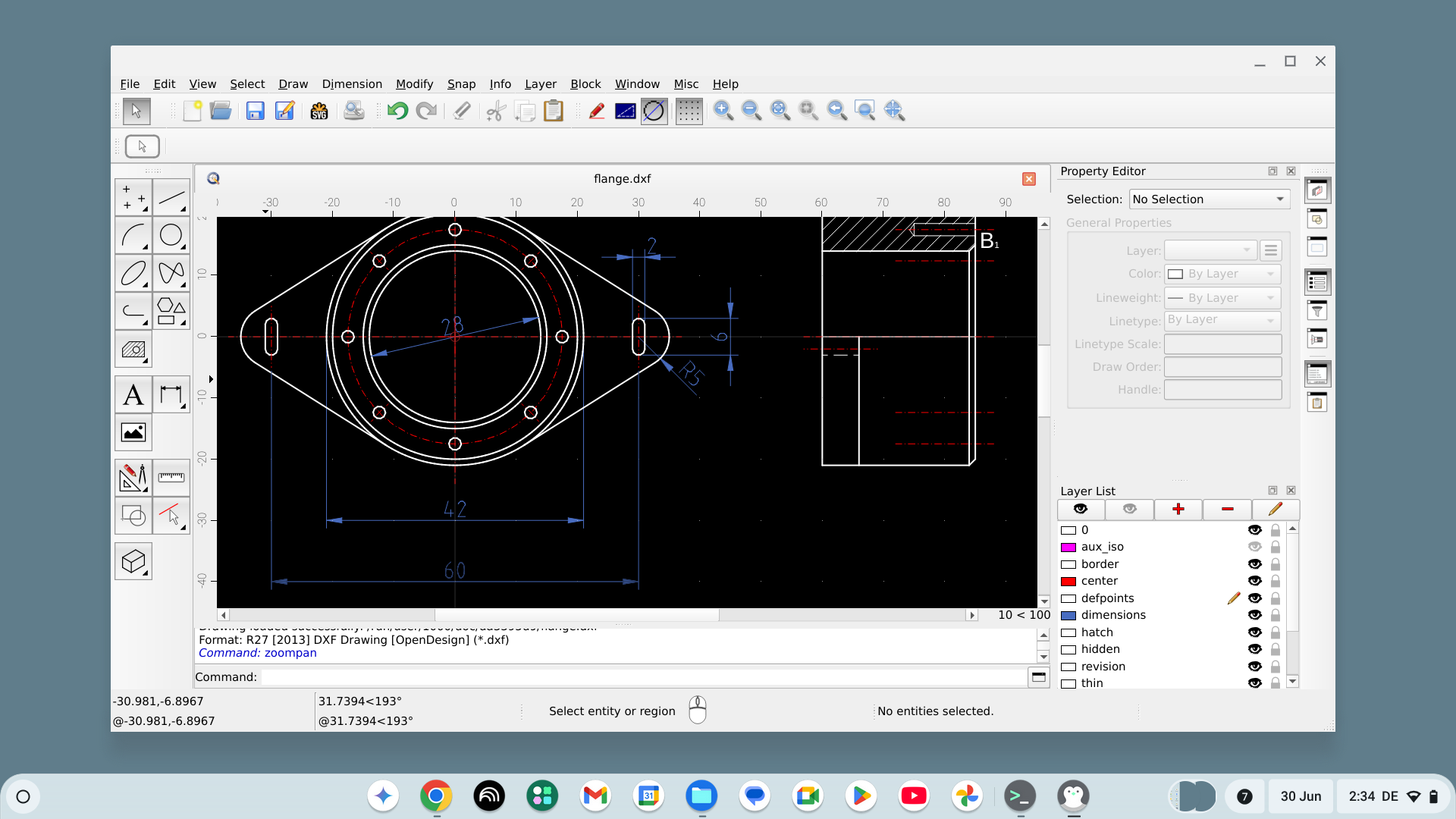

QCAD on ChromeOS
This page guides you through installing QCAD on ChromeOS on your Chromebook computer.
Am I using ChromeOS?
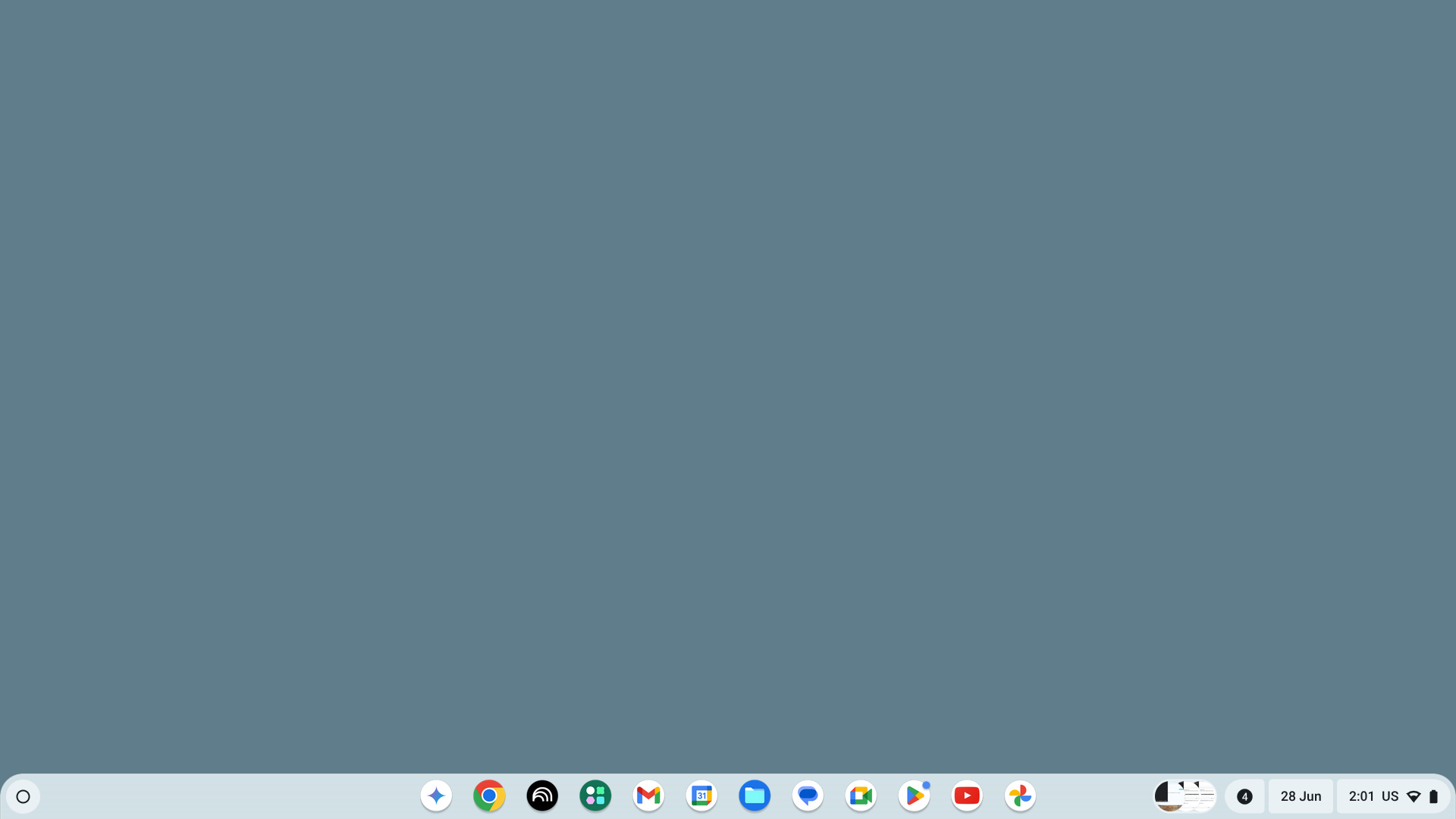
If you are using a laptop that mentions “Chromebook” somewhere, chances are it has ChromeOS installed. A typical ChromeOS desktop has a shelf at the bottom of the screen with a circle in the bottom-left corner for the launch menu:
Installing the Linux environment
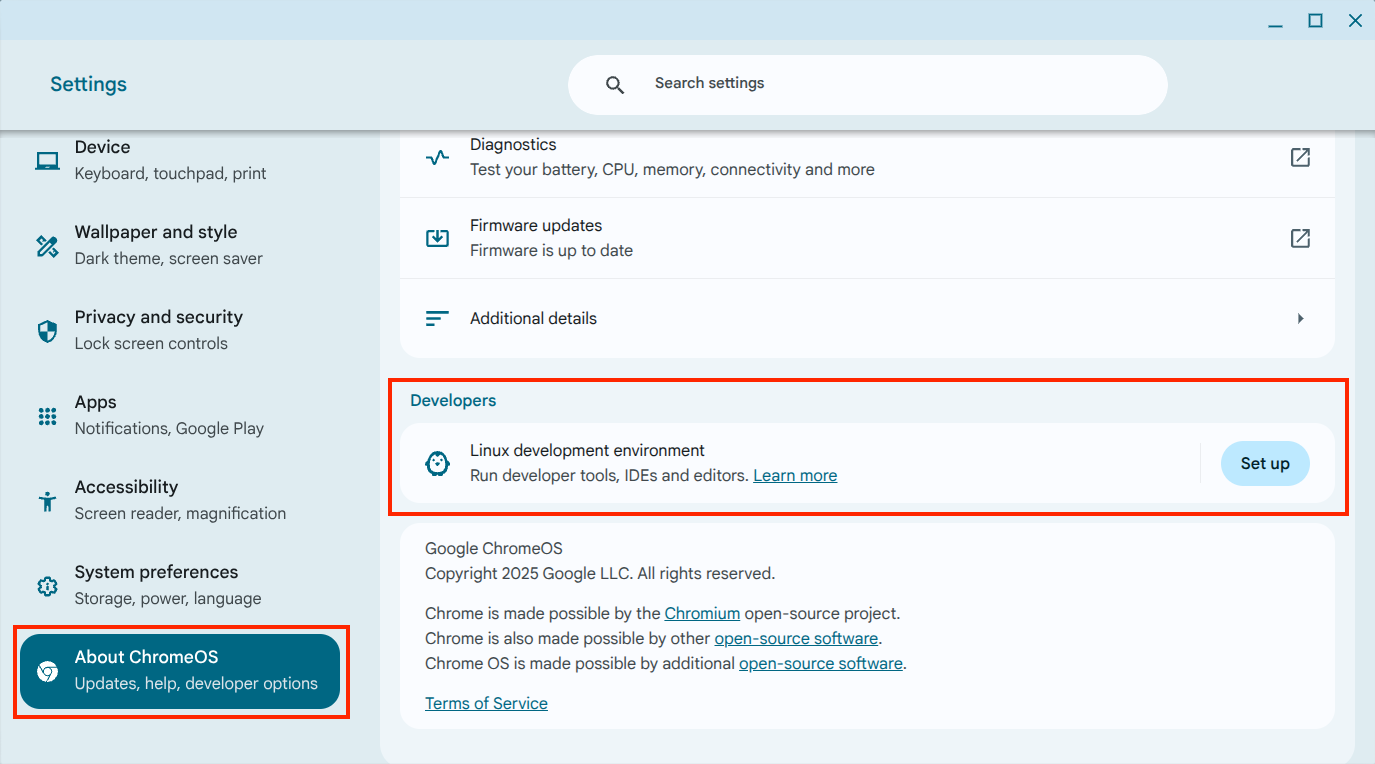
Click the circle in the bottom-left corner (Launcher) to show the launch menu and start the Settings app. Navigate to About ChromeOS and scroll down to Linux development environment:
- Click Set up, then Next.
- Enter a user name for the Linux environment (for example your first name). User names may not contain spaces and are all lowercase.
- For the disk size, leave the default 10.0 GB.
- Click Install and wait for the installation to complete.
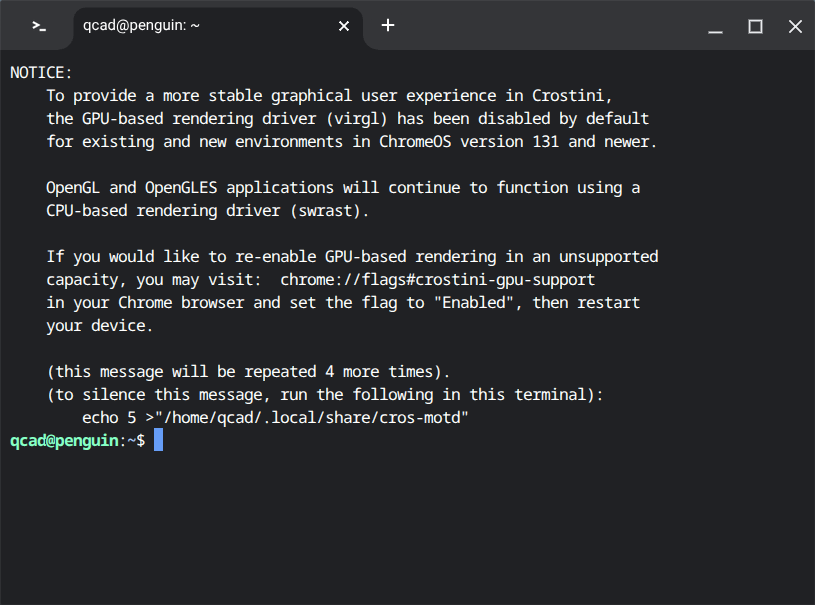
Eventually a black window opens with text like username@penguin:~$, where username is the name you chose. This window is called a Terminal and we will use it to install QCAD:
Installing Flatpak
Copy the following into the terminal (paste with a right-click or by tapping with two fingers on the trackpad) and hit Enter:
sudo apt install flatpak- When the terminal asks “Do you want to continue?”, hit Enter again.
- Wait for the installation to complete (typically a few minutes). When the
username@penguin:~$line appears in green again, it is done.
Adding the Flathub repository
Copy the following into the terminal and hit Enter:
sudo flatpak remote-add --if-not-exists flathub https://dl.flathub.org/repo/flathub.flatpakrepoEnter your password and hit Enter again.
Finding out the CPU type
In the terminal, type the following and hit Enter:
uname -mThis displays your CPU type, for example aarch64 or x86_64:
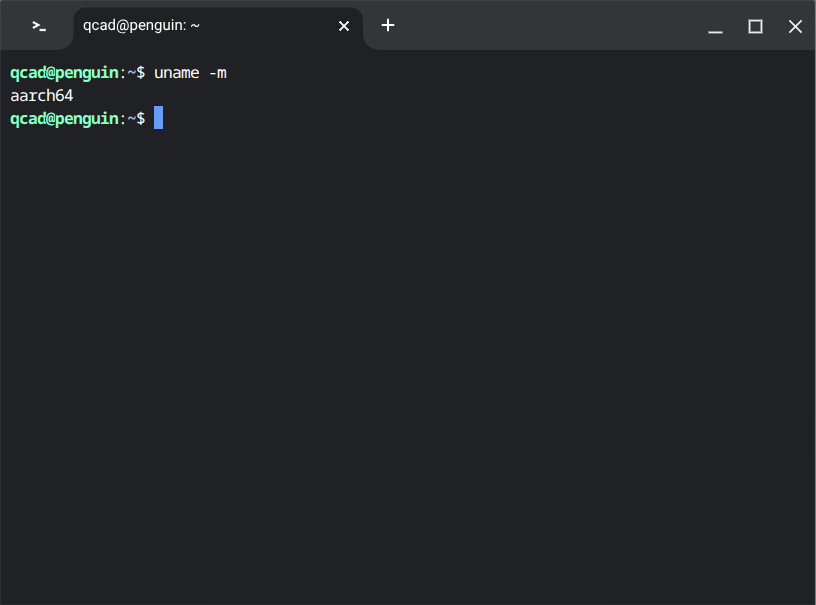
aarch64— a 64-bit ARM CPU.x86_64— a 64-bit Intel or AMD CPU.
Keep in mind which CPU type you have.
Installing the correct runtime
If your CPU is aarch64:
sudo flatpak install flathub org.freedesktop.Platform/aarch64/25.08If your CPU is x86_64:
sudo flatpak install flathub org.freedesktop.Platform/x86_64/25.08Downloading the correct QCAD package
Open the download area from the link you received after your purchase and scroll down to the downloads with the .flatpak ending:
- 64-bit Intel or AMD CPU: scroll down to Linux Intel/AMD 64bit.
- 64-bit ARM CPU: scroll down to Linux ARM64 (AArch64).
Below the title you scrolled to, click the item with Flatpak in its name to download the Flatpak file. The Chrome browser suggests saving it in your Downloads folder — this is fine, so click Save. Wait for the download to complete.
Installing QCAD
Open the Files app (blue folder logo) from the shelf. On the right-hand side, right-click Downloads and choose Share with Linux:
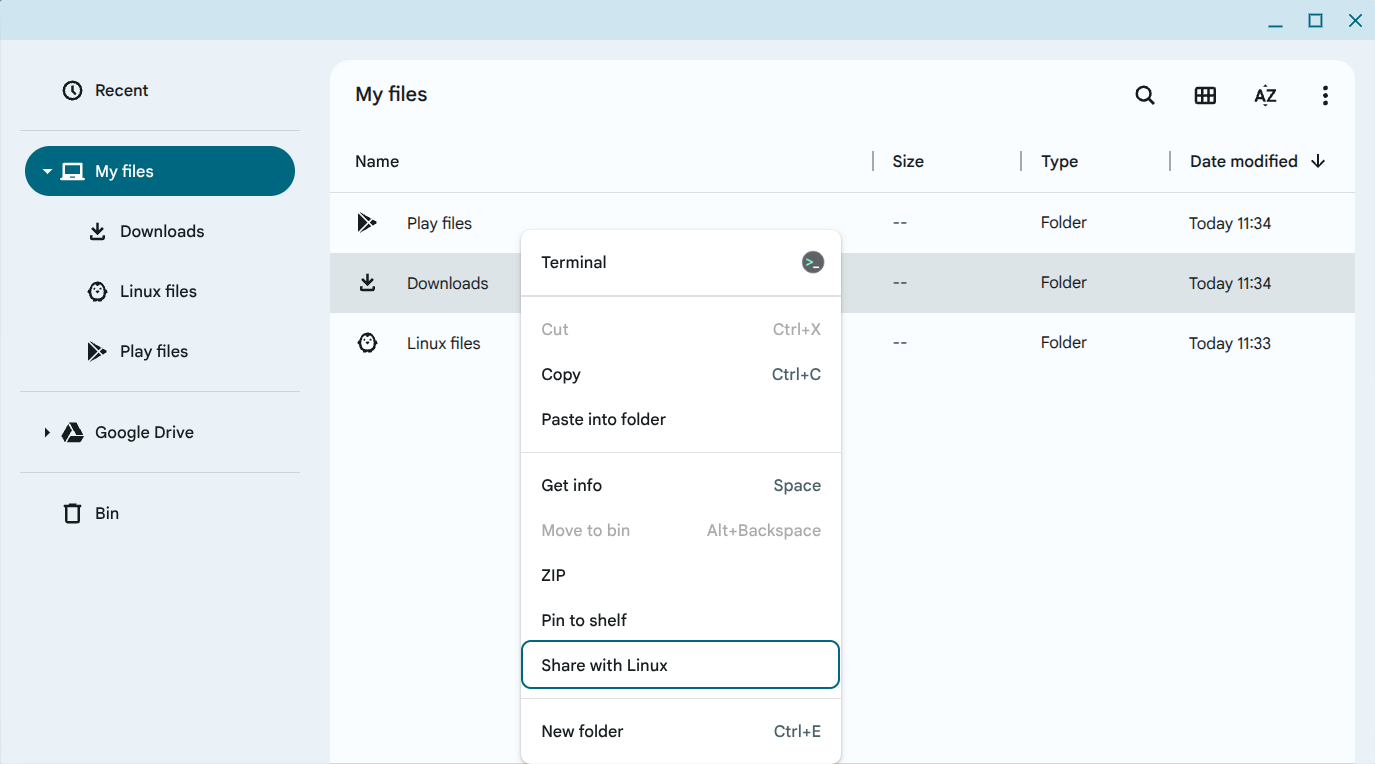
Close the Files app and go back to the Terminal. Navigate to the Downloads folder:
cd /mnt/chromeos/MyFiles/DownloadsIf you have an Intel CPU, type:
flatpak install --user qcad-3.x.x.x-pro-linux-qt6-x86_64.flatpakIf you have an ARM64 CPU, type:
flatpak install --user qcad-3.x.x.x-pro-linux-qt6-arm64.flatpak3.x.x.x above is the exact version number of the package you downloaded.
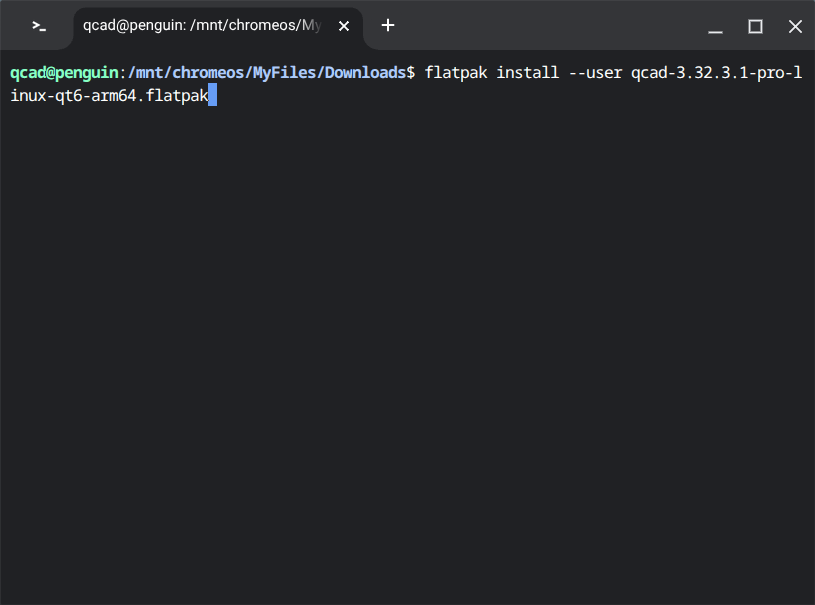
The terminal prompts you:
Required runtime for org.qcad.QCAD/... (runtime/org.freedesktop.Platform/...) found in remote flathub
Do you want to install it? [Y/n]:
Hit Enter. The terminal then prompts:
Proceed with these changes to the user installation? [Y/n]:Hit Enter to confirm.
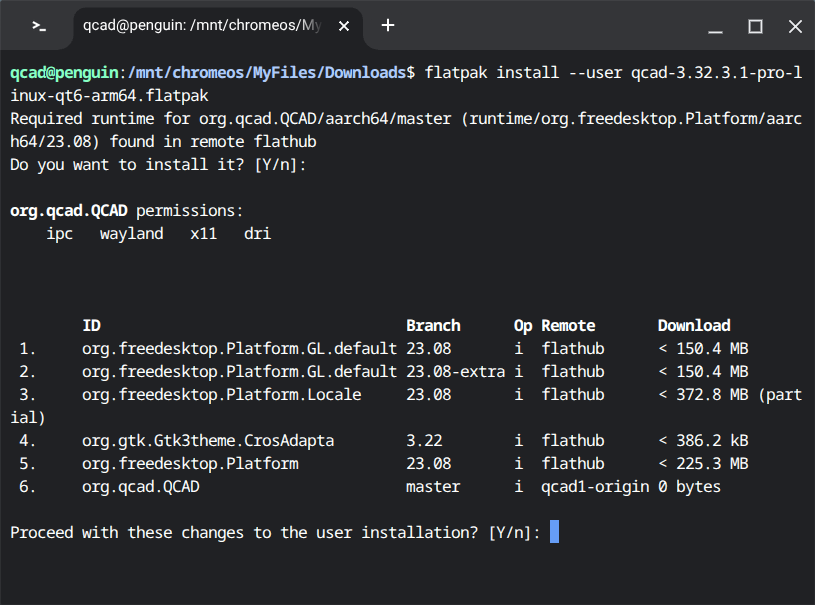
This takes a few minutes, depending on your Internet speed. When it has finished, the terminal shows “Installation complete.”
Running QCAD
To start QCAD, type:
flatpak run org.qcad.QCADOr use the Launcher, where you can find QCAD in the Linux Apps folder:
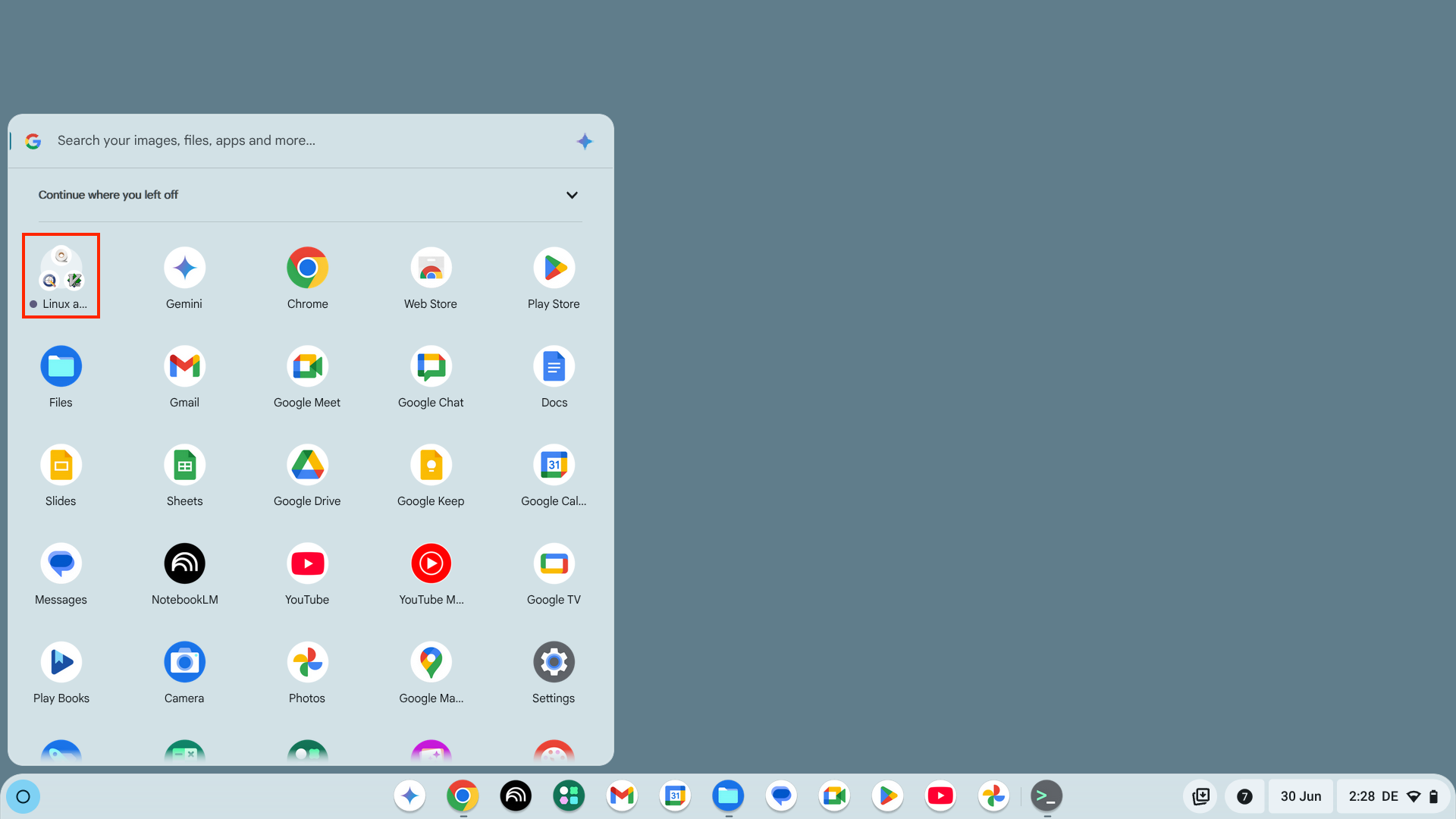
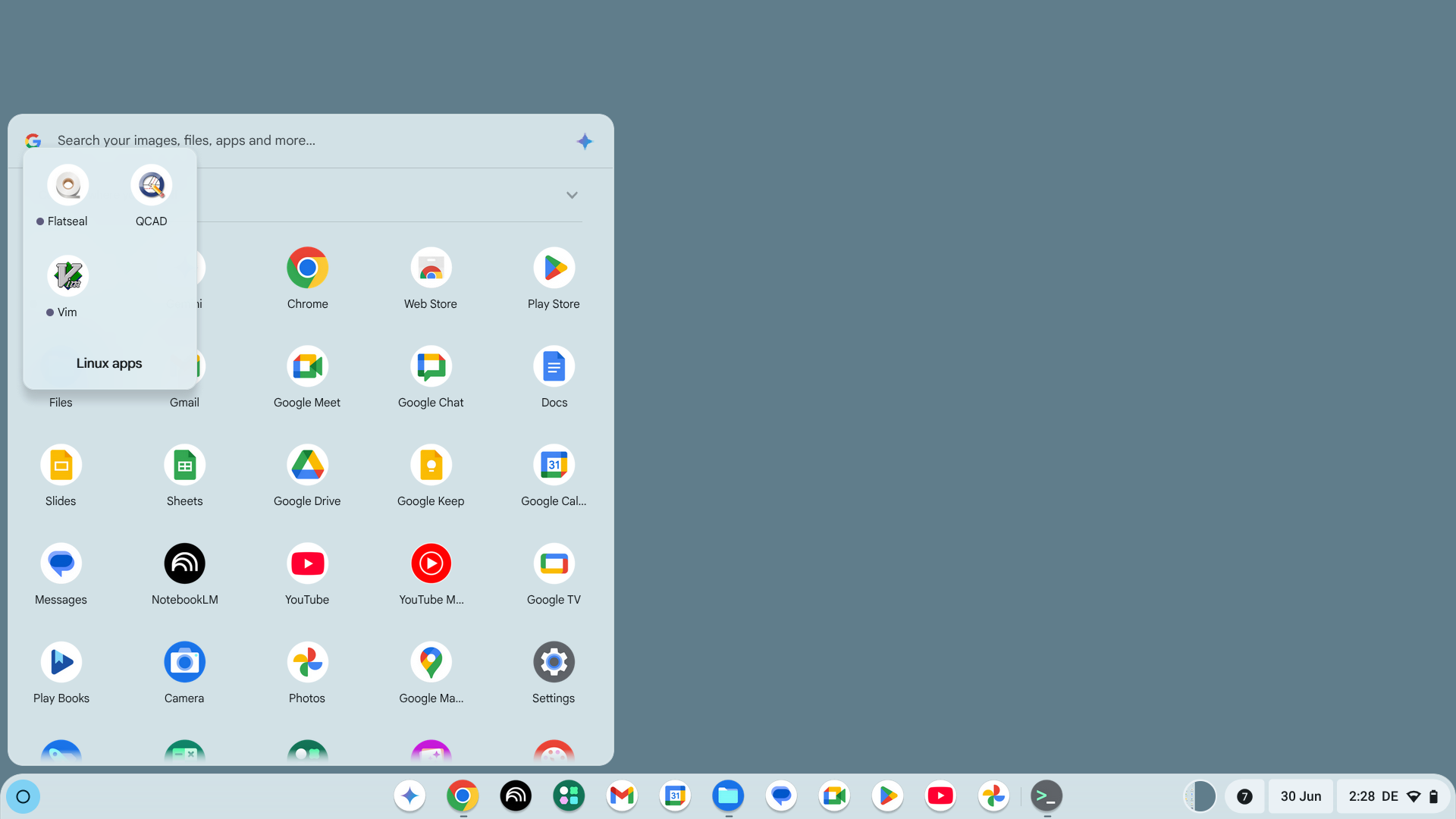
QCAD starts with its welcome screen, where you can choose some default settings. Once you confirm, the QCAD application window is shown and you can start working: