
Feature Spotlight

A closer look at some of QCAD's outstanding features.

Hierarchical Layers

Hierarchical Layers

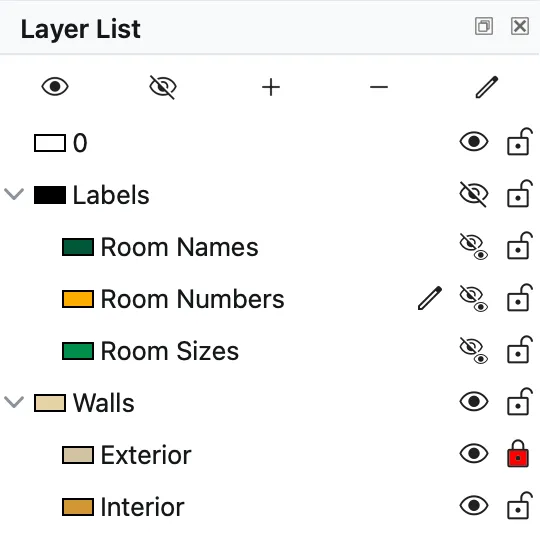
Organize layers in a tree of parent layers and sub-layers. Expand or collapse branches to keep even large layer lists clear.

Whole groups of layers can be switched off or protected from changes with a single click, while the individual settings of each sub-layer are kept.

Layer hierarchies are stored in the layer names, which keeps drawings fully compatible with DXF and DWG files and other CAD applications.
Property Editor

Property Editor

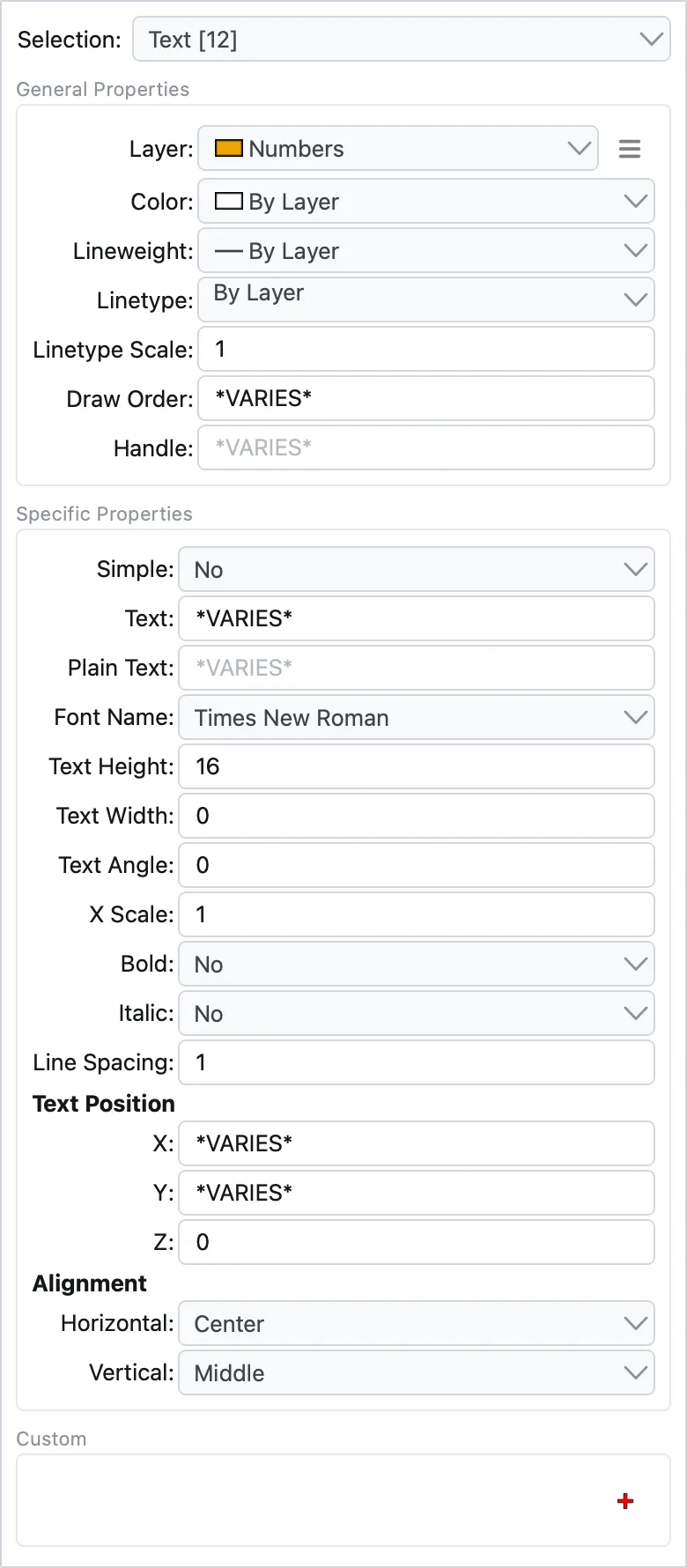
View and change the properties of selected entities, and narrow the selection down to a specific entity type. Additional read-only information, such as the area of polylines and hatches, is shown as well.

Changes apply to all selected entities at once, so properties like layer, color or line width can be adjusted for many entities in a single step.

Powerful Offset Tool

Powerful Offset Tool

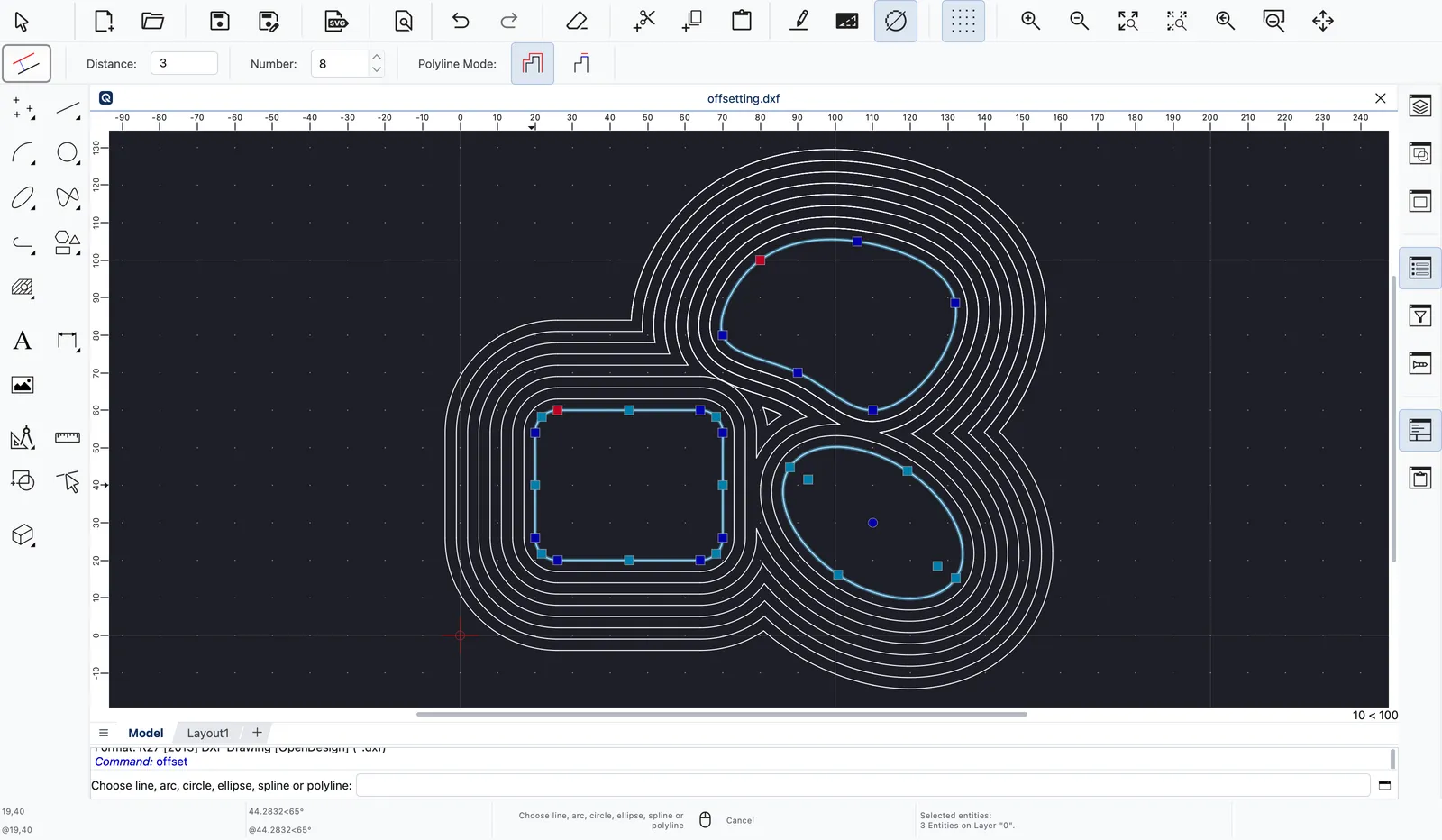
Create parallel copies of single entities or of complete contours made up of lines, arcs, ellipse arcs, splines and polylines. Several contours can be offset together in one operation.

Corners are joined automatically, and you can create several offsets at once at a fixed distance, which is ideal for outlines, clearances or tool paths.

Poster Printing

Poster Printing

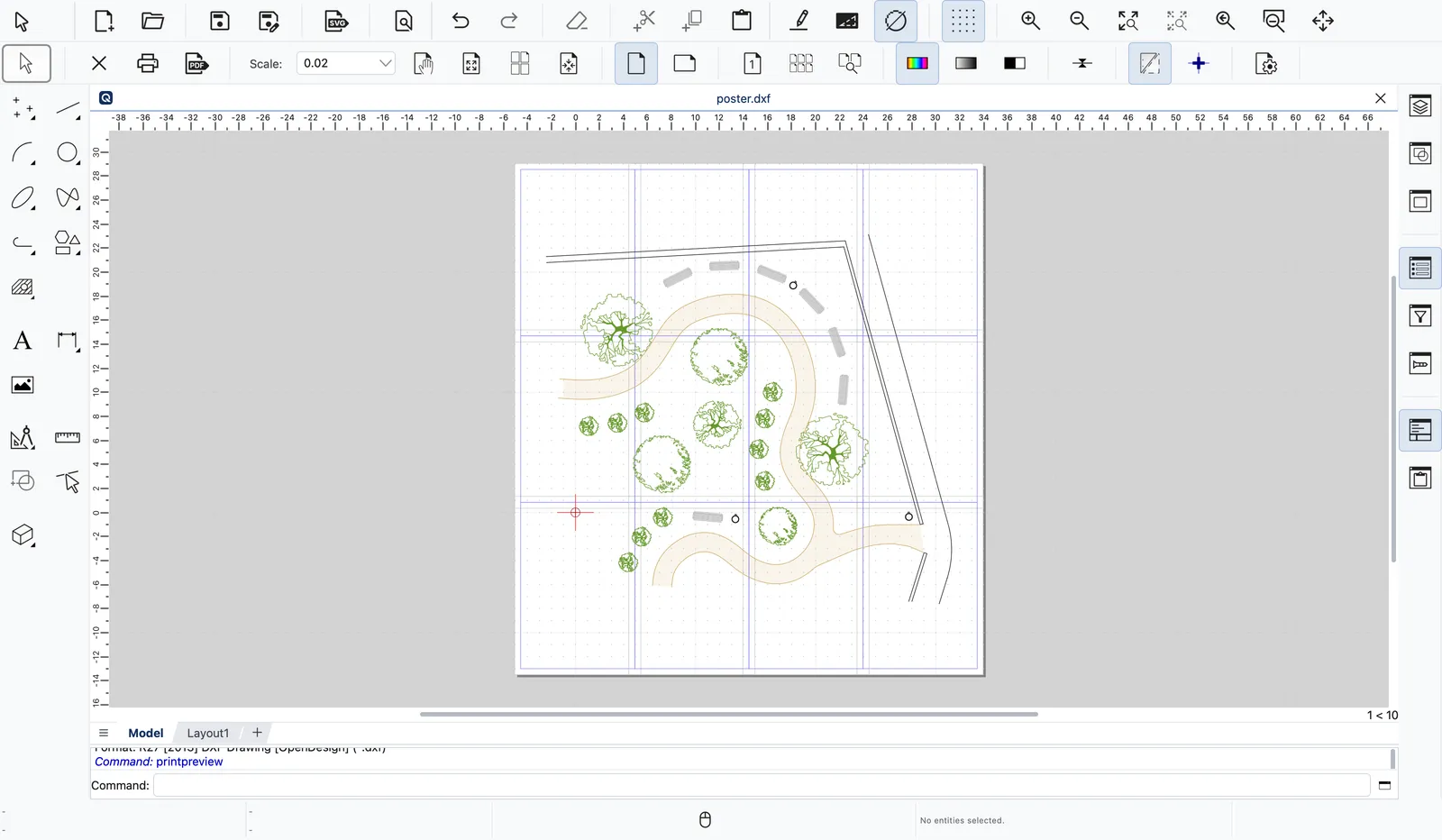
Print drawings that are too large for a single page across several sheets of paper, at exactly the scale you choose, and assemble them into a poster.

Optional glue margins and page borders make the sheets easy to align and stick together, so plans and layouts can be shown at their true size.

AI Assistant Integration (MCP)

AI Assistant Integration (MCP)

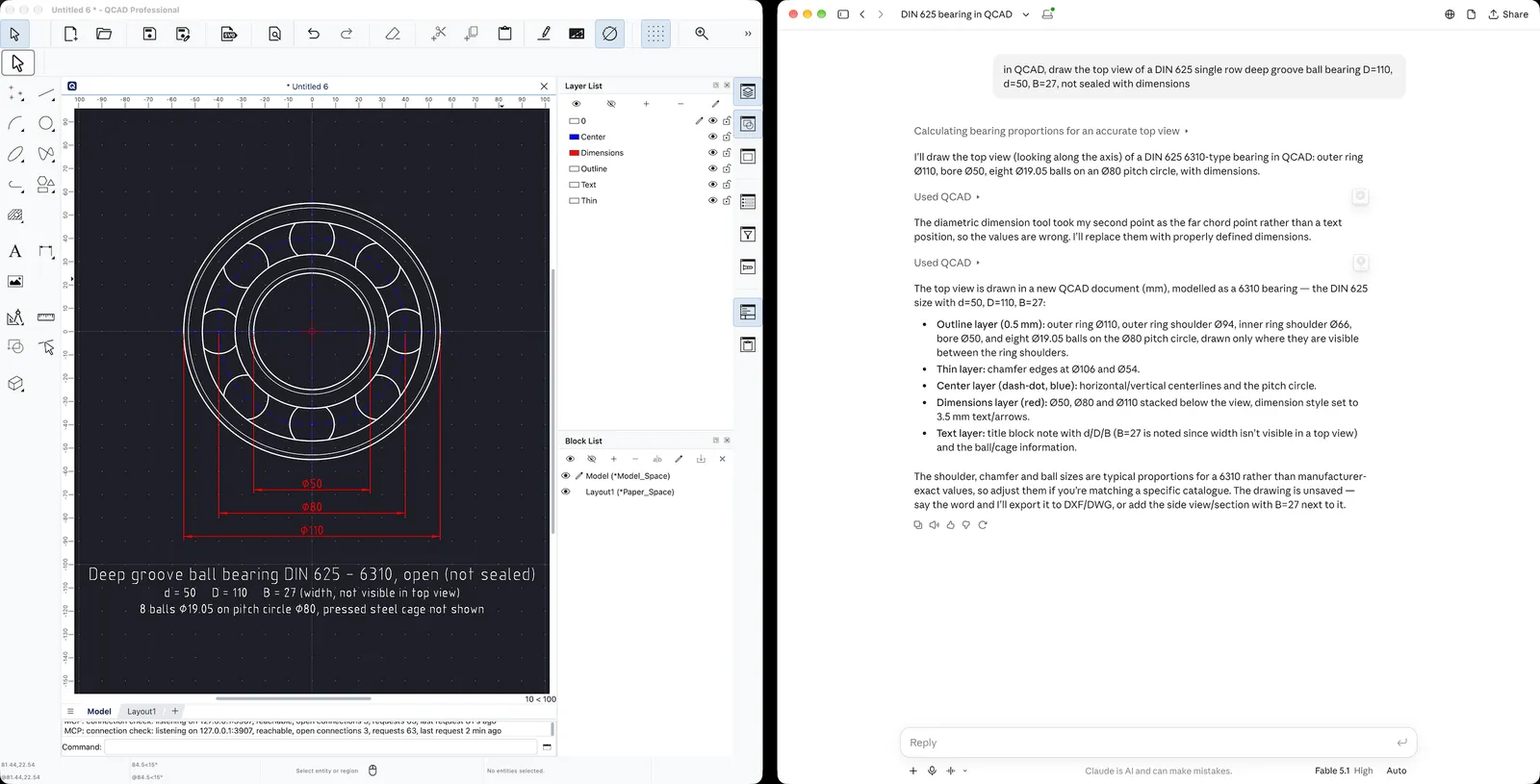
Connect QCAD to AI assistants such as Claude through the Model Context Protocol (MCP). Describe what you need in plain language and watch the assistant create layers, draw geometry and add dimensions directly in QCAD.

The results are regular QCAD drawings that you can inspect, edit and refine by hand, or save as DXF and DWG files like any other drawing.

QCAD/CAM 3D Simulation

QCAD/CAM 3D Simulation

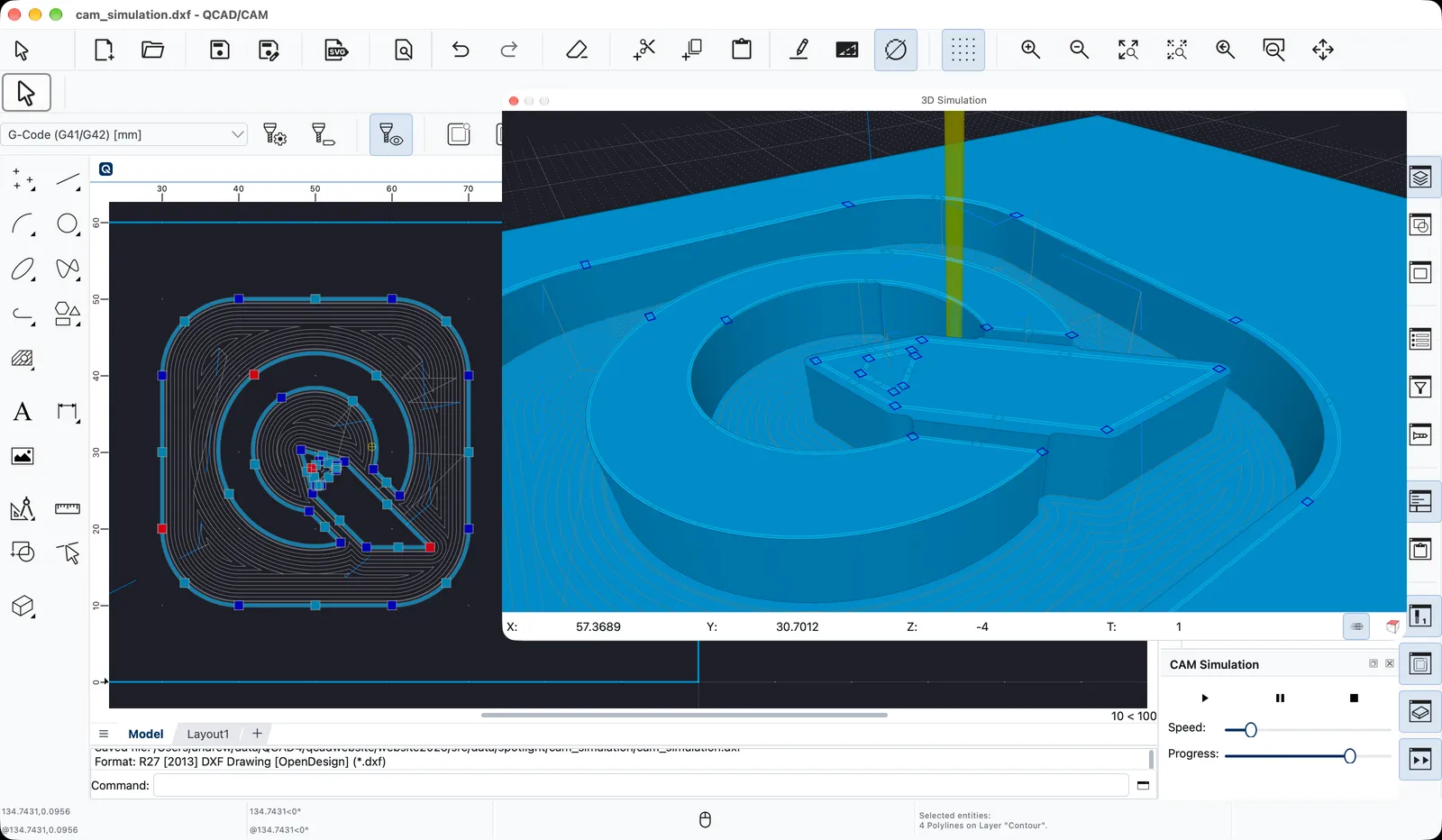
Watch your toolpaths come to life in a 3D simulation. QCAD/CAM shows the tool moving through a virtual workpiece and removes material as it goes, so you can see exactly what the finished part will look like.

Play, pause or stop the simulation at any time, adjust its speed, or jump to any point using the progress slider.

QCAD/CAM Nesting

QCAD/CAM Nesting

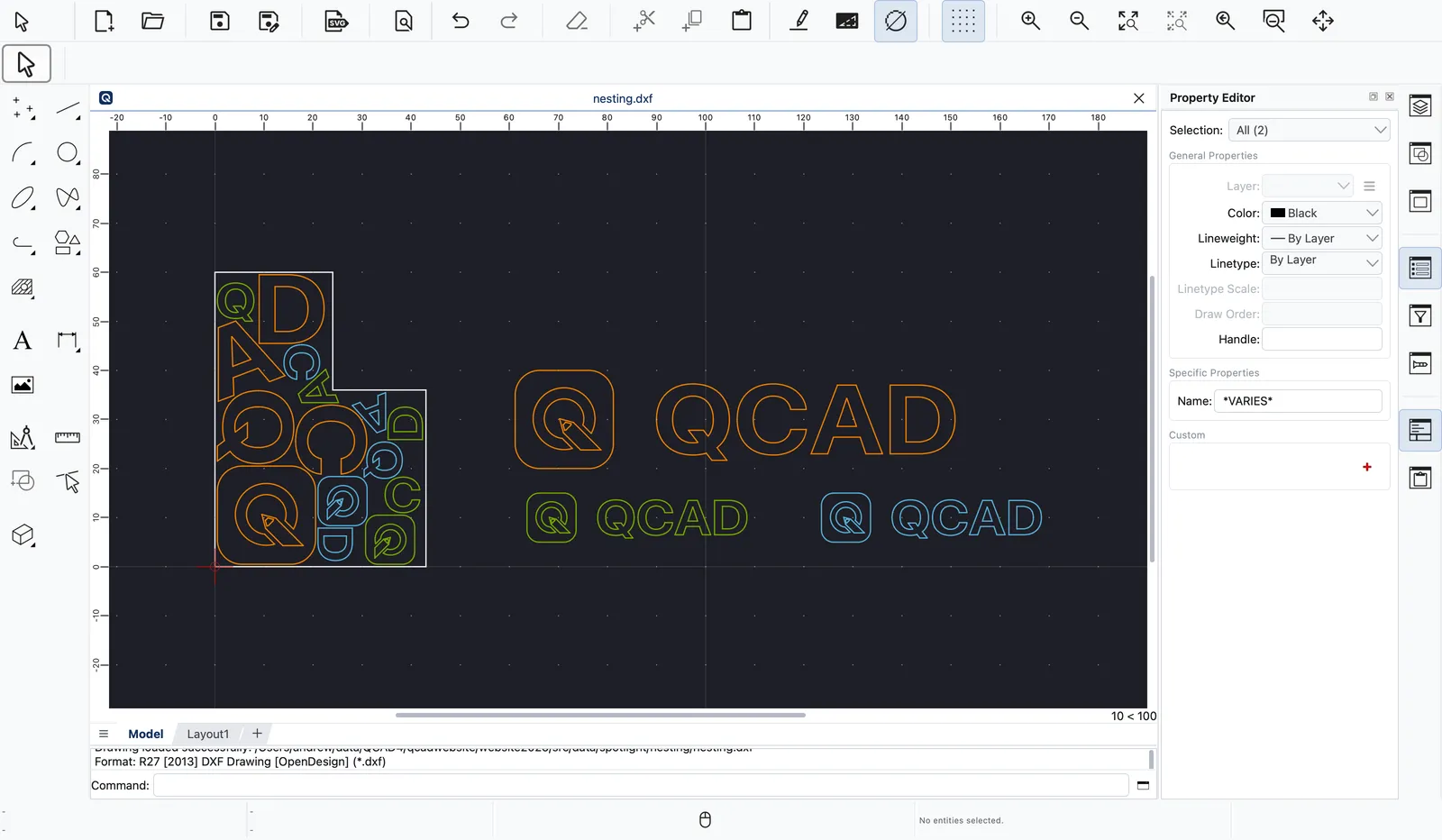
Nesting arranges parts on one or more sheets automatically, packing them tightly to make the most of your material. QCAD/CAM can nest parts of any shape onto as many sheets as you need.

Machine learning helps find efficient layouts, and multithreading spreads the work across all CPU cores. You get good results quickly, which means less waste and lower material costs for laser, plasma, waterjet or CNC router cutting.