

The Script Shell
Introduction
Section titled “Introduction”QCAD comes with a very powerful and complete script interface, allowing you to access almost the entire QCAD API as well as the Qt API through ECMAScript (JavaScript). A good way to experiment with scripts is the QCAD Script Shell.
Launching the Script Shell
Section titled “Launching the Script Shell”The script shell can be shown using menu Misc > Development > Script Shell.
The script shell shows up as a widget with a command line at the bottom and a command line history that shows previously entered commands and their output.
Running Commands
Section titled “Running Commands”Call the function to add a line by entering this into the command line at the bottom:
addLine(0,0, 100,100)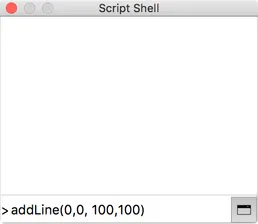
Press the Enter key to submit the command.
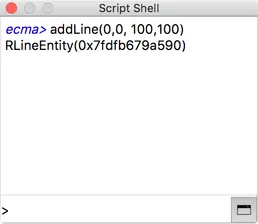
QCAD adds a line from 0,0 to 100,100 to the current drawing.
The function addLine is part of the QCAD Simple API, a simplified way to access a limited part of the QCAD API. You can find a list of all QCAD Simple API functions at the QCAD Simple API documentation page.
Scripts on Multiple Lines
Section titled “Scripts on Multiple Lines”Loops (if, for, while, …) are usually entered on multiple lines. You can do this in the same way in the script console by entering these lines, one by one and hitting enter:
for (i=0; i<=10; i++) { addLine(i*10,0, i*10,100);}Indentations are not required.
This script adds 11 parallel lines from x=0 to x=100 with a distance of 10 units.
Copy / Pasting Scripts
Section titled “Copy / Pasting Scripts”More complex scripts with multiple lines can be written into an external text editor and then copy / pasted into the script console. The script is executed as soon as it is pasted.
Repeating the Last Used Command
Section titled “Repeating the Last Used Command”Use the up arrow and down arrow keys to browse through previously entered commands and modify them or launch them again.
Clearing the Command Line History
Section titled “Clearing the Command Line History”Use Ctrl-L (⌘L) to clear the command line history.